Shared Environments#
Kiroframe Shared Environments provide a signle point to manage your production and test environments. These resources are meant to be acquired for exclusive utilization by an organization member or a team member only temporarily and then released making them available again. The common use cases are release stands and demo environments where the availability of a range of components (e.g. for deploying some software version) has to be controlled in order to eliminate accidental breaking or loss of interconnections.
Simply add new Shared Environment, not related to any connected Cloud Account, from the Shared Environments page.
Create new Shared Environment#
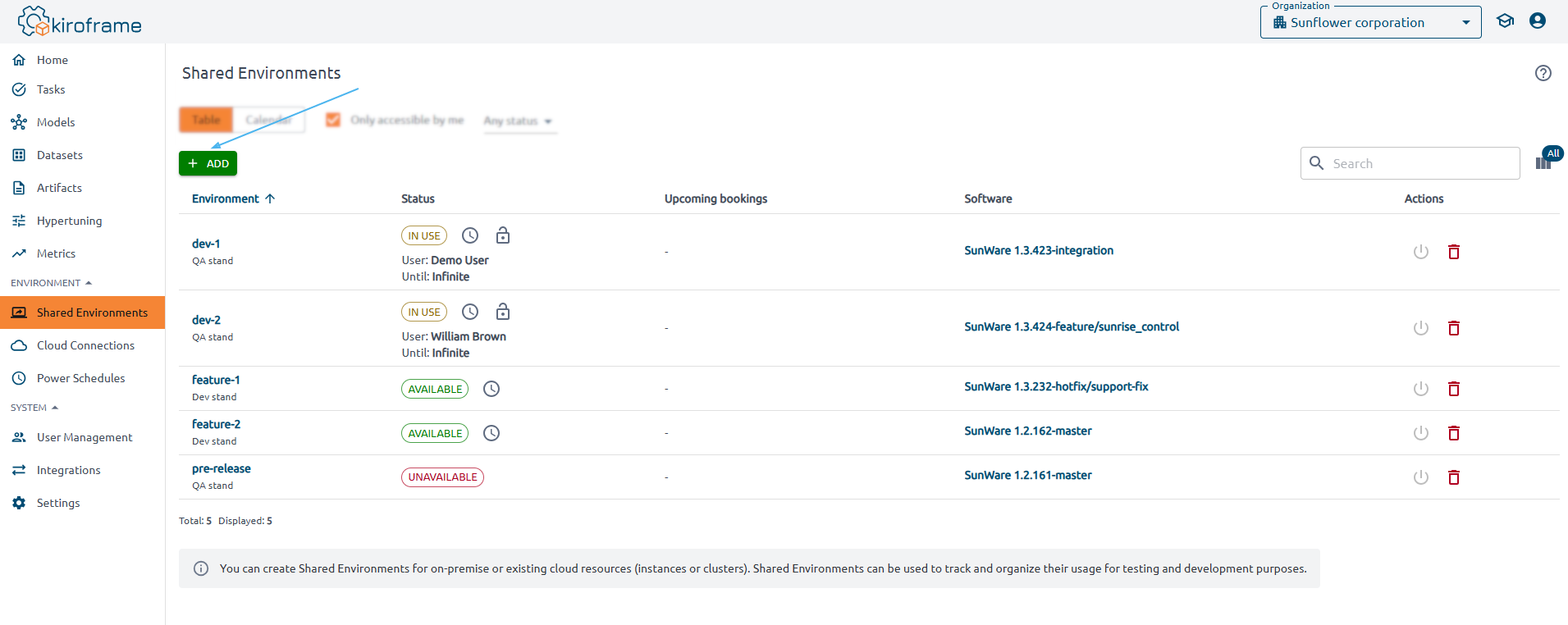
To create a new Environment in Kiroframe go to Environment → Shared Environments at the left sidebar of the main page and click Add.
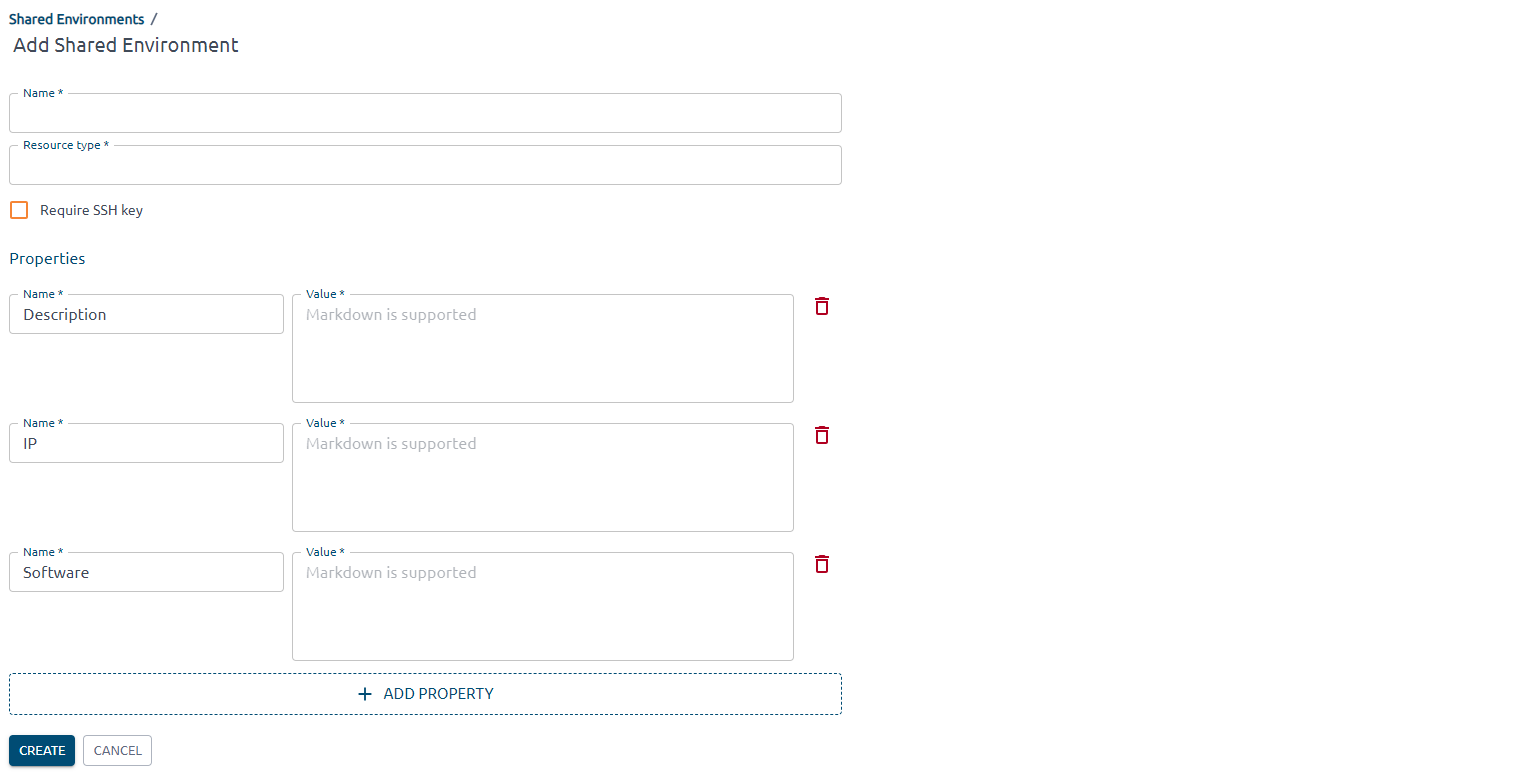
You will be prompted to input a Name and a Resource type, set if SSH access is required, specify additional properties for a new Shared Environment. Dy defauls, the solution requests to add the Description, IP, and Software. Use the Add Property button in case if you want to add extra properties.
A newly created entity will be added to this section and listed in a table providing information about its Status which can be In use, Available, or Unavailable, Upcoming bookings, and related Software.
Action buttons#
The following action buttons allow to control an existing environment:
 - a
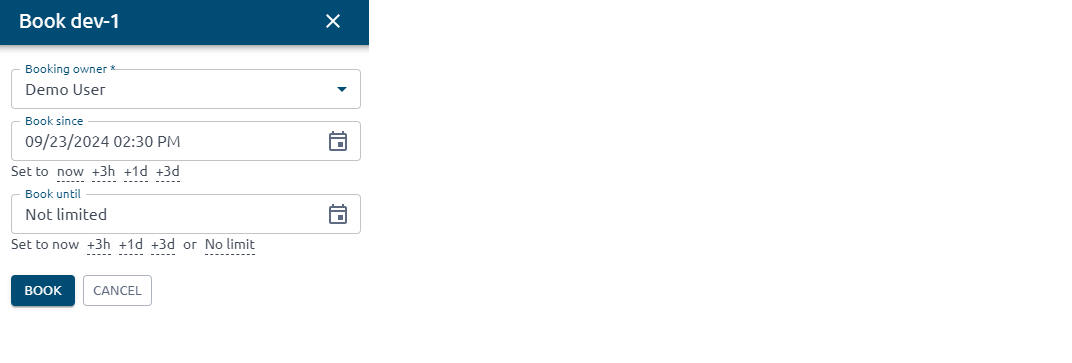
Shared Environment can be booked for a selected period of time.
- a
Shared Environment can be booked for a selected period of time.
 - a
booked Shared Environment can be released to make it available again. A
notification will be sent to the corresponding tenant user.
- a
booked Shared Environment can be released to make it available again. A
notification will be sent to the corresponding tenant user.
 -
a scope of resources can be deactivated temporarily to prohibit it from
being booked.
-
a scope of resources can be deactivated temporarily to prohibit it from
being booked.
 -
deletion of the Shared Environment.
-
deletion of the Shared Environment.
Detailed instructions on how to organize access to shared resources using Kiroframe find on our website.